 by
by This blog is about the installation and configuration of the NDES role and the Intune NDES connector. NDES Role is needed to enroll the certificates to the devices. The connector is needed to connect with Microsoft Intune as a Certification Authority.
Here are the links to the previous parts:
- Configure Microsoft Intune – Certificate – Part 1: Intro
- Configure Microsoft Intune – Certificate – Part 2: Certification Authority
- Configure Microsoft Intune – Certificate – Part 3: Azure Application Proxy Connector
- Configure Microsoft Intune – Certificate – Part 4: Certificate Templates
- Configure Microsoft Intune – Certificate – Part 5: CNAME and Application Proxy
- Configure Microsoft Intune – Certificate – Part 6: Create Certificates
Alrighty then, let’s try
Install and Configure NDES Server
Now it is time to install the NDES role on the server. Someone has made a script for installing the NDES role on a server. We are going to use that script.
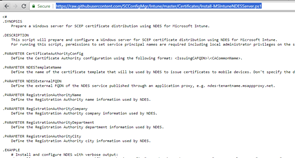 |
Go to: https://raw.githubusercontent.com/SCConfigMgr/Intune/master/Certificates/Install-MSIntuneNDESServer.ps1
and copy the text. Thanks to http://www.scconfigmgr.com/ for the script. |
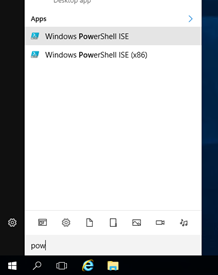 |
Search for PowerShell ISE and open ISE. |
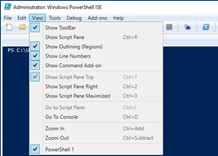 |
Go to the menu View and click on Show script pane. |
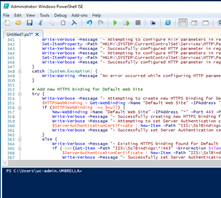 |
Paste the text into the script pane. |
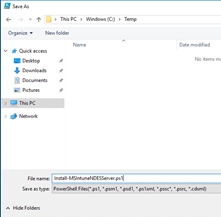 |
Save the script as Install-MSIntuneNDESServer.ps1 in a directory. |
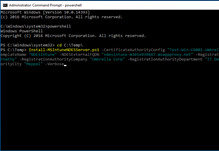 |
Open Powershell and browse to your PSScript. Enter the this command line:
.\Install-MSIntuneNDESServer.ps1 -CertificateAuthorityConfig “Test-Win-CA001.Umbrella.Corp\Umbrella-CA” -NDESTemplateName “NDESIntune” -NDESExternalFQDN “ndesintune-m365x939467.msappproxy.net” -RegistrationAuthorityName “Alice Abernathy” -RegistrationAuthorityCompany “Umbrella Corp” -RegistrationAuthorityDepartment “IT Department” -RegistrationAuthorityCity “Meppel” -Verbose |
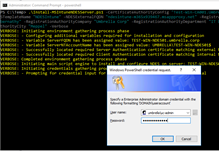 |
Enter the Enterprise admin account. |
 |
Enter the NDES service account. |
 |
The installation is done and now it is time to reboot the server. |
 |
You can test if NDES is working correctly. Enter the external URL outside the network. If you see the NDES webpage then NDES, Azure Application Proxy, and Connector is working.
Use the following external URL: https://ndesintune-m365x939467.msappproxy.net/certsrv/mscep/mscep.dll |
Install the Intune NDES connector on the NDES Server
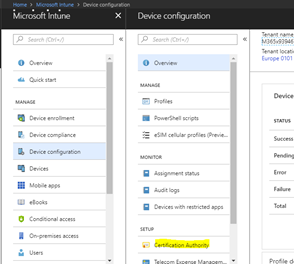 |
Go to the Microsoft Intune portal -> Device Configuration -> Certificate Authority. |
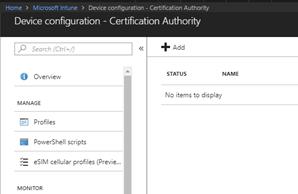 |
Click on the Add button. |
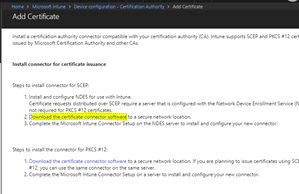 |
Click on the link Download the Certificate connector software. |
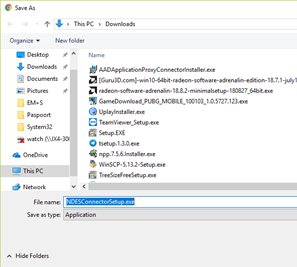 |
Save the setup file. |
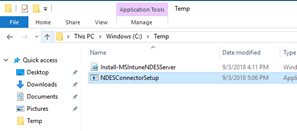 |
Paste or move the setup to the NDES server. |
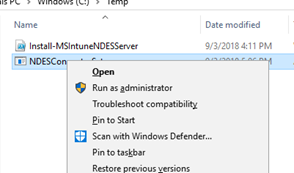 |
Right click on the setup and click on Run as administrator. |
 |
Click on the Next button. |
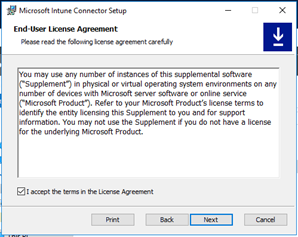 |
Select I accept the terms in the license agreement and click next. |
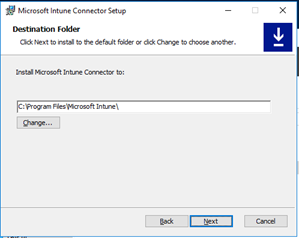 |
Click Next. |
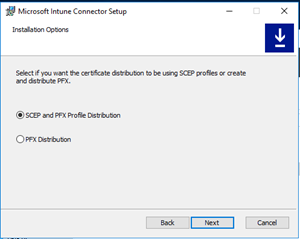 |
Click Next. |
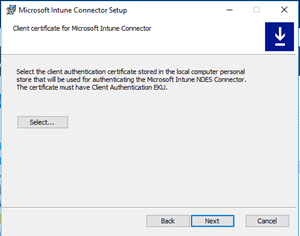 |
Click on the Select button. |
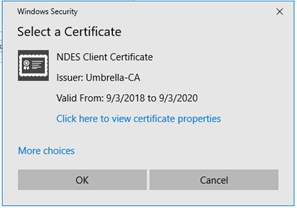 |
You have to select NDES Client Certificate. Click on the Ok button. |
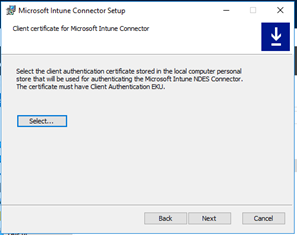 |
Click on the next button. |
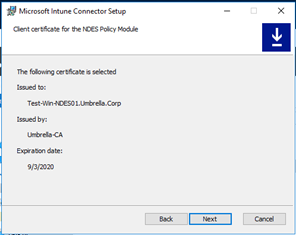 |
Next |
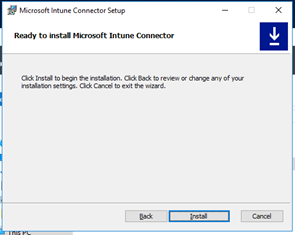 |
Install |
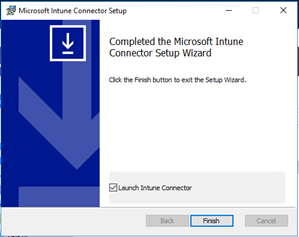 |
Select Launch Intune Connector. Click Finish. |
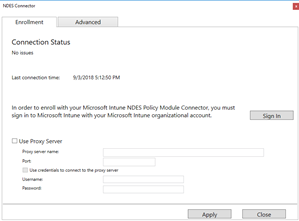 |
Click on the sign in button. You must connect this with your tenant. |
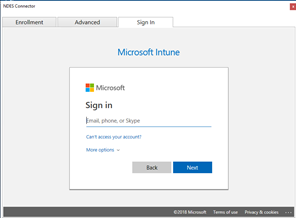 |
Sign in with your Global administrator or Intune service account. |
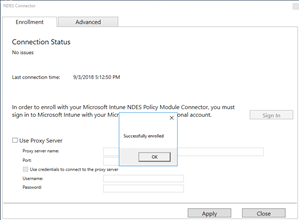 |
The connector is successfully enrolled. Click on the Ok button. |
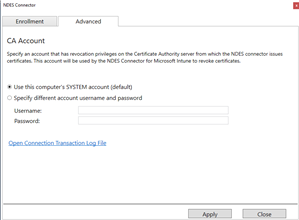 |
Go to the Advanced tab. |
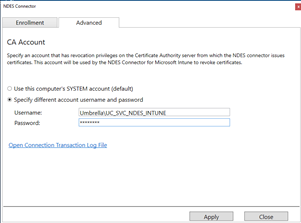 |
Enter here the Intune NDES service account and click on the Apply button. |
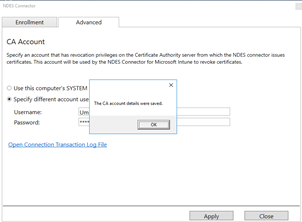 |
Click on the Ok button and click on the Close button to close the NDES Connector window. |
 |
Go back to the Intune portal and verify if the connector has a connection with the tenant. |
Final
This is what we did. We have installed the NDES role and configure it. We have installed the Intune NDES connector after the installation of NDES. Microsoft Intune has a connection with the NDES server.
Your certificate environment is ready for use. Next part and the latest part is to create a device configuration profile for enrolling the Root and user certificate to managed devices.
Thanks for reading the blog. If you have any questions or comments about this, do not hesitate to contact me by email or by posting a comment here below. I am also active on social media and some community forums, like Technet forum, Yammer, and Techcommunity.
Good luck and Take care now, bye bye then…
 ALBERTNEEF.TECH
Hi Albert, did you install the SCEP and NDES role on a seperate server ? ( I know the SCEP cannot be installed on the CA server). But what about NDES role. Do you combine NDES and SCEP on one server as general rule of thumb?
Hi Rkast, you have to install the connector on the NDES server. You can install the NDES role on a separate server, instead of on a PKI server. The common practice of course. The Intunes NDES connector must be installed on an NDES server and can not be separated. Check the Microsoft docs: https://docs.microsoft.com/nl-nl/intune/certificates-scep-configure#download-install-and-configure-the-certificate-connector
A quote from Microsoft:
“The Microsoft Intune Certificate Connector must be installed on a separate Windows server. It can’t be installed on the issuing Certificate Authority (CA). It must also be installed on the same server as the Network Device Enrollment Service (NDES) role.”
Good luck!
Thank you sir! Dont know how i missed that part in the article Probably Monday 😉
Haha, no problem at all! Indeed always the Monday.
Any idea what to do when we have Enterprise CA with NDES role combined ? Can we add a second NDES server without interrupting NDES services?
Found this post describing it is possible to spin up a second NDES , https://social.technet.microsoft.com/Forums/en-US/9c1a2152-b382-4181-8f84-332220196d5e/multiple-ndes-servers?forum=microsoftintuneprod
Hi RKast, indeed no problem to do that. You can use a second NDES server for Intune without interrupting the exist NDES services.
I am sort of confused based on creating the certificates. One cert was creating a duplicate for web server for IIS. The other cert for was for the Intune Connector, using the client authentication based on user template. I saw the server cert being enrolled twice on the server based on the guide. How does one enroll the user cert on the NDES server for the Intune Connector to see it?
Hi Jeff, no problem at all.. Let’s try to clear this one :)…
You got 2 certificates, one for the IIS web server and one for the NDES Intune connector. Then you need also a certificate for enrolling the certificates to the managed devices. Before that, you have to create 2 different templates. The one in my blog is NDESServer and the other is NDESIntune. The IIS Web Server and NDES Client Certificates were enrolled based on NDESServer template, but both two have different values (see DNS values). NDESIntune will be used for enrolling the certificates to managed devices. As you can see in the PowerShell script for installing the NDES server, you see that NDES will use the NDESIntune template.
So, for IIS and NDES Intune Connector = NDESServer template
For enrolling certificate through NDES, NDES Intune connector, and SCEP profile = NDESIntune template.
I hope this will help you..
Albert thanks for the valuable information.
One more question for you, when deploying a SCEP profile in Intune, how do we define the profile just for mobile devices for Android and IOS.
Currently we are not targeting WIndows 10 laptops, but just trying to configure our mobile devices to connect to our internal WiFi which authenticates against our EnterpriseCA. It seems I might have to use a device cert instead of a user cert when assigning out from our NDES server.
Hi Jeff, no problem!
Yes, you should use device certificates instead of user certificates. To exclude Windows 10 devices, you have to use Azure AD device groups to deploy the profile to iOS and Android devices. Thus, not to all devices or users and usergroup, but only to a device group from the Azure AD.
To specify the type of certificate is located in the SCEP profile. You can choose between user or device.
hello Albert, I have followed this steps but i getting the following error after instal NDES through the Ps Script:
– The Network Device Enrollment Service cannot be started (0x80070057). The parameter is incorrect.
– The Network Device Enrollment Service cannot retrieve one of its required certificates (0x80070057). The parameter is incorrect.
Is this issue is passing by or can you tell me what the issue might be
thanks in advance
Thanks for your command. The install command in the blog is working. If you have copied the command line then I think the ” are different. That is mostly the reason that installation fails on parameters if have copied the command line.
Hello Albert,
I am trying in vain to find out the sever spec for the sever on which we have to configure the intune certificate connector and the NDES role.
Can you advice where I can find this?
Hi George,
Thanks for your comment. The only thing matter is that you have a CA and Windows Server 2012 R2 or higher. You have to install the Intune NDES connector on the same server where you installed and configured the NDES role.
This link provides you more information about the NDES role: https://docs.microsoft.com/nl-nl/previous-versions/windows/it-pro/windows-server-2012-R2-and-2012/hh831498(v=ws.11)
This link provides you a new blogpost about NDES for SCEP in Intune:
https://techcommunity.microsoft.com/t5/Intune-Customer-Success/Support-Tip-How-to-configure-NDES-for-SCEP-certificate/ba-p/455125