 by
by Ok, continue with configuring certificates via Microsoft Intune. Previous, we have installed Certification Authority and Azure Application Proxy connector. Now, it is time to go further with the pre-configuration for NDES and Intune NDES connector.
Here are the links to the previous parts:
- Configure Microsoft Intune – Certificate – Part 1: Intro
- Configure Microsoft Intune – Certificate – Part 2: Certification Authority
- Configure Microsoft Intune – Certificate – Part 3: Azure Application Proxy Connector
Alrighty then, let’s try
We need to change some property. This will allow the requester to enter the validity period. Run this on the CA server in a command prompt with admin privileges:
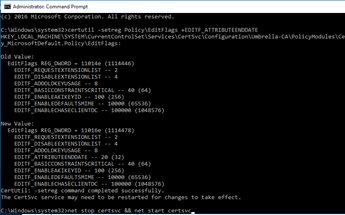 |
certutil -setreg Policy\EditFlags +EDITF_ATTRIBUTEENDDATE
net stop certsvc && net start certsvc |
These steps are for creating two new templates. These templates are we going to use for the NDES server and Intune NDES connector.
We need a service account and an AD group. The service account is needed for the Intune NDES connector and for requesting the certificates. The group is needed for the certificate template. This group contains the NDES server(s) computer object.
The service account is a normal user account without special AD permissions. Only User permission is enough for this account.
In this blog, I have a service account named UC_SVC_NDES_INTUNE and a group called DL_UC_NDES_Servers which is linked to GS_UC_NDES_Servers. In the GS_UC_NDES_Servers group, I have added the NDES Server and I used DL_UC_NDES_Servers for the template. It is not necessary to use 2 different groups. You can also use 1 global security group to manage this all. I like structure, so I used the domain local and global security group.
Certificate Templates for NDES Server
This template will be used to create two certificates. We have to make a certificate to secure IIS by enabling and binding HTTPS on the NDES server and the other will be used for the Intune NDES connector installation.
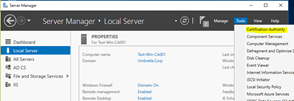 |
Go to your CA server and open Server Manager. Click in the menu on Tools and click on Certification Authority. |
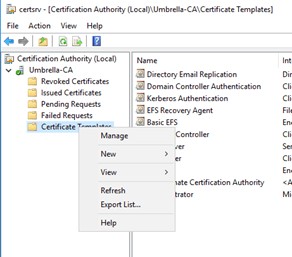 |
Right click on Certificate templates and click on Manage. |
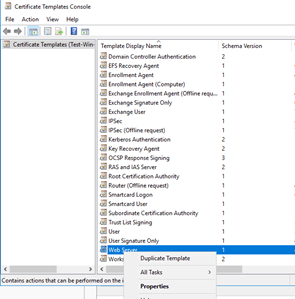 |
Search for Web Server. Right-click on Web Server and then click on Duplicate Template. |
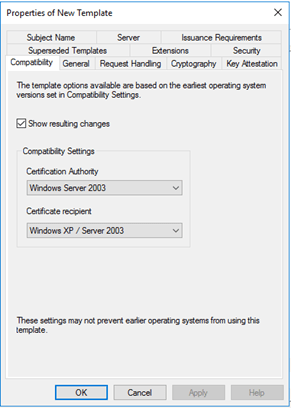 |
Compatibility tab:
This is the default. No change needed. |
 |
General tab:
Give the template a name. Change the validity period to 10. |
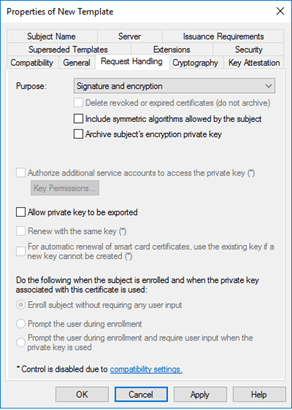 |
Request Handling tab:
This is the default, no change is needed. |
 |
Cryptography tab:
This is the default, no change is needed. |
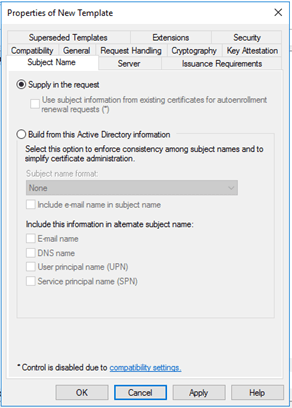 |
Subject Name:
This is the default, no change is needed. |
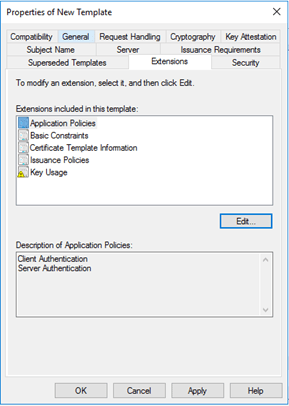 |
Extensions tab:
For Application Policies, you have to add Client Authentication. The default is Server Authentication. You can add Client Authentication via the Edit button. |
 |
Security tab:
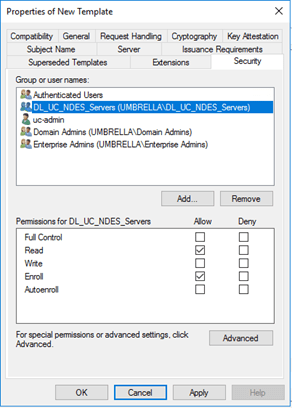
Add here the NDES server group, which you have created earlier. In this group contains the NDES server. Give this group Enroll and Read permissions. Change the permissions for Domain Admins and Enterprise Admins. Unselect Enroll permissions for them. |
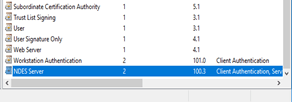 |
Click on Apply and then Ok. Now you got a new template, named NDES Server. |
NDES Intune Certificate Template
This template has another purpose, apart from the previously created template. This one will be used when the NDES service account is requesting certificates on behalf of mobile devices.
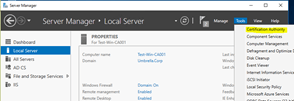 |
Go to your CA server and open Server Manager. Click in the menu on Tools and click on Certification Authority. |
 |
Right click on Certificate templates and click on Manage. |
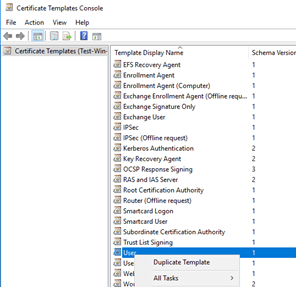 |
Search for User. Right-click on User and then click on Duplicate Template. |
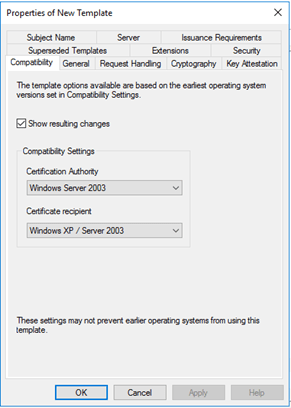 |
Compatibility tab:
This is the default. No change needed. |
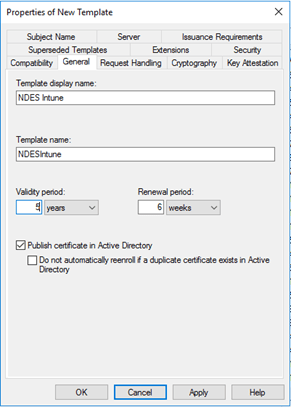 |
General tab:
Give the template a name. Change the validity period to 5. |
 |
Request Handling tab:
Deselect Allow private key to be exported. |
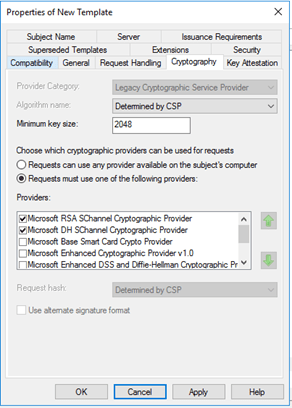 |
Cryptography tab:
This is the default, no change is needed. |
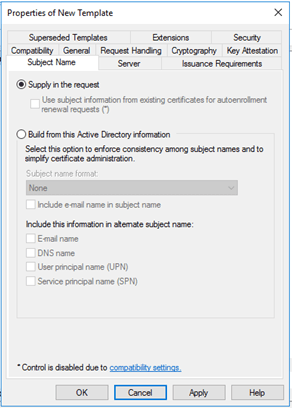 |
Subject Name:
This is the default, no change is needed. |
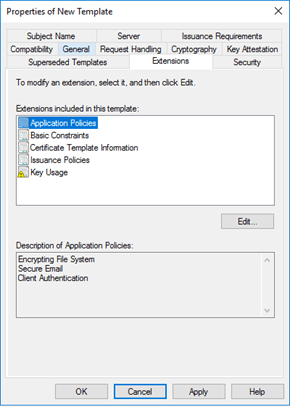 |
Extensions tab:
Application Policies are the default and contain:
|
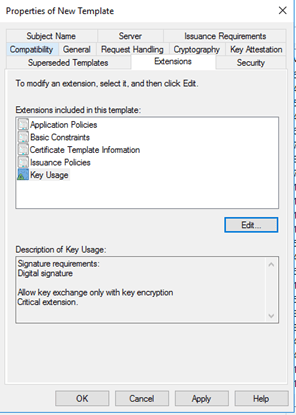 |
Extension Tab:
This is default for Key Usage. Click on the Edit button and check if Signature is proof of origin is select. If so, unselect this. This required for iOS devices.
|
 |
Subject Name tab:
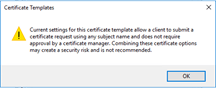
Click on Supply in the request. You will get this message:
Click on the Ok button. |
 |
Security tab:
Here you have to add the NDES Intune service account that you have created earlier in this blog. Give the service account read and enroll permissions. Unselect enroll permission for Domain Admins and Enterprise Admins. Remove other accounts and groups, like Domain Users and the administrator. |
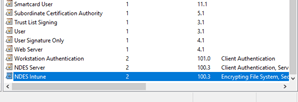 |
Click on Apply and Ok button. You have made a new certificate template for NDES. |

Issue the created certificate templates
 |
Go back to CA console. Right-click on Certificate Templates -> New -> Certificate Template to Issue. |
 |
Select your created templates. By holding the CTRL key pressed, you can select multiple templates.
Click on the OK button. |
 |
The templates are issued and can be used for creating a certificate. |
Final
What we did in this blog is:
- We changed a property to allow the requester to enter the validity period
- Create two templates, which we need for NDES and Intune NDES connector.
Next part is about CNAME and making a new Application Proxy in Azure Active Directory.
Thanks for reading the blog. If you have any questions or comments about this, do not hesitate to contact me by email or by posting a comment here below. I am also active on social media and some community forums, like Technet forum, Yammer and Techcommunity.
Good luck and Take care now, bye bye then…
 ALBERTNEEF.TECH
Hi Albert,
I need your help with the below query.
We have taken an SSL certificate for hosting NDES services in IIS. And we have created a new Template (Lets say “NDESIntune”) for NDES-Intune set up. While Installing the NDES-Intune connector, do we need to use the Certificate created from “NDESIntune” template or can we use any other certificate with Client Authentication while installing NDES connector??
Thanks.