 by
by Azure Application Proxy is a nice solution (an Azure Active Directory Premium licensing feature) to connect managed devices outside the network with your on-premise services, like Work Folders or for enrolling certificates to your managed devices. This is possible without any other solutions, like VPN connection. This feature acts as a proxy and will proxying the requests outside the network to the internal server which you have given up in the settings.
Azure Application Proxy is a software which must be downloaded from the Azure portal. You must install this software on a domain member server which has Windows Server 2012 R2 or 2016 OS running.
This blog post is just an example and is for testing purpose only.
The previous parts:
- Configure Microsoft Intune – Certificate – Part 1: Intro
- Configure Microsoft Intune – Certificate – Part 2: Certification Authority
Alrighty then, let’s try
We begin with the installation and after that, we will configure the role.
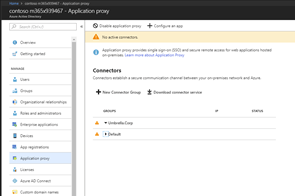 |
Go to the Azure portal -> Azure Active Directory -> Application Proxy
Click on Download connector service.
Ignore the warning, please. This warning is because of a server which is not can be reached by Azure. |
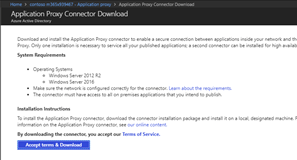 |
Click on the button Accept terms & Download. |
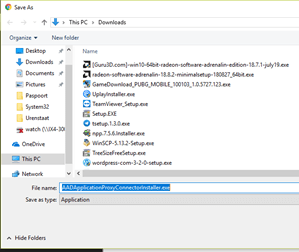 |
Save the installer. |
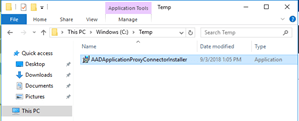 |
Copy or move the setup to the server. |
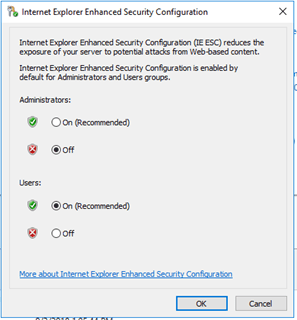 |
Before installing the connector, please make sure if you have disabled the IE Enhanced Security Configuration for Administrators. |
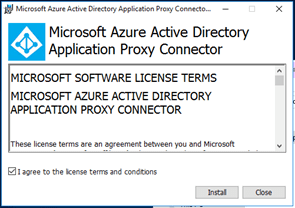 |
Run the setup. Click on I agree to the license terms and conditions. Click Install. |
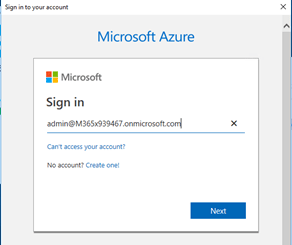 |
Sign in with your Global Administrator account. |
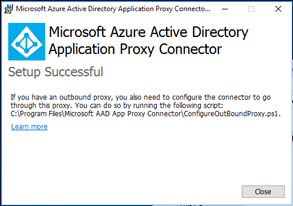 |
The installation is done. Click Close. |
 |
Go back to the Azure portal. As you can see the server has been added. The status says Active. This means that the connection is good and working. |
Troubleshooting:
 |
For troubleshooting, you can check the event log. Azure Application Proxy has an own event log. You can find the log via Applications and Services log -> Microsoft -> AadApplicationProxy. |
Final
Now we got an Azure Application Proxy Connector running on-premise. This one is connected with your tenant. So, for requests outside the corporate network, they will go through the Azure Application Proxy connector and they will be handled and redirected to the internal URL which is configured in the Application Proxy.
Next part is about certificate templates for the NDES server.
Thanks for reading the blog. If you have any questions or comments about this, do not hesitate to contact me by email or by posting a comment here below. I am also active on social media and some community forums, like Technet forum, Yammer, and Techcommunity.
Good luck and Take care now, bye bye then…
 ALBERTNEEF.TECH
7 Comments