 by
by This will be a quick how-to blog post for installing and configuring a Certification Authority (CA) on Windows Server 2016.
A CA is needed if you have plans to enroll certificates to (mobile) devices, server, or users. Most Wi-Fi networks and VPN connection requires a certificate.
This setup is only for testing purpose. You can use this as a basis for your production environment, but I would recommend using your internal organizations’ requirements to install and configure a CA environment. This setup has got 1 CA server which is the Root CA. Normally in a production environment, you got also need a subordinate CA for security reasons.
The previous part:
- Configure Microsoft Intune – Certificate – Part 1: Intro
What do you need for this setup
- A domain (domain controller), Umbrella.Corp is the name of my domain.
- A domain member server for Certification Authority.
Alrighty then, let’s begin
We begin with the installation of the Certification Authority and later in this blog, we will configure this role.
Go to Server Manager -> Manage -> Add Roles and Features

The Roles and Feature wizard
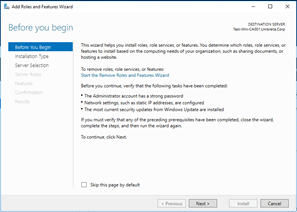 |
Next |
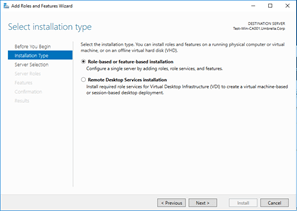 |
Next |
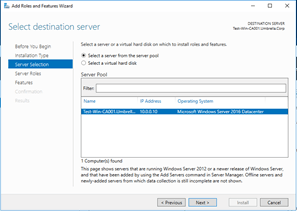 |
Select the correct server. Click on the Next button. |
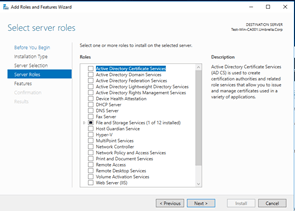 |
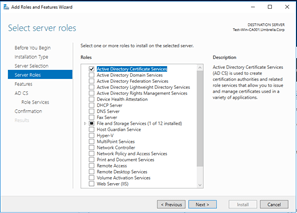
Select Active Directory Certificates Service. |
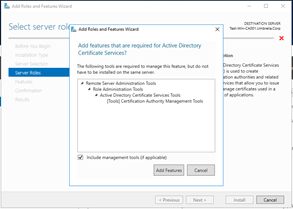 |
Add Features |
 |
Next |
 |
Next |
 |
Next |
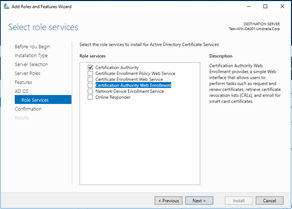 |
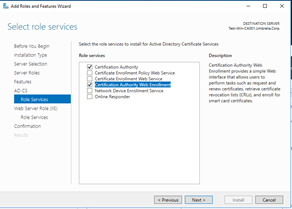
Click on Certification Authority Web Enrollment |
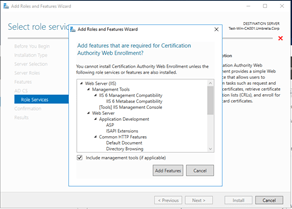 |
Add Features |
 |
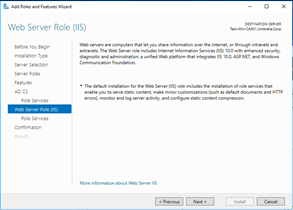
Next |
 |
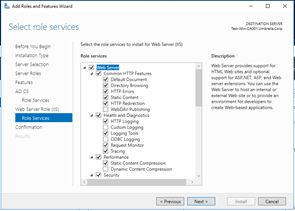
Next |
 |
Next |
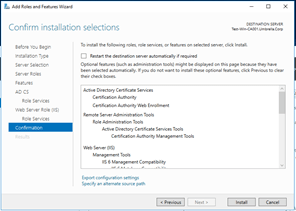 |
Install |
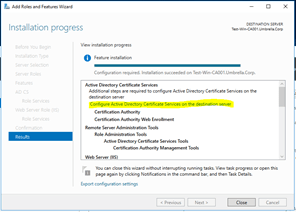 |
The installation is done. Now we have to configure the feature. Click on Configure Active Directory Certificate Services on the destination server. |
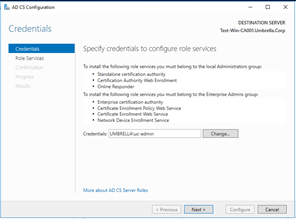 |
Next |
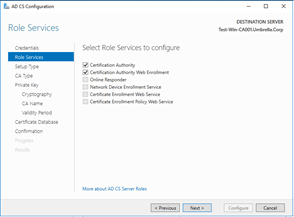 |
Select both roles. Click Next. |
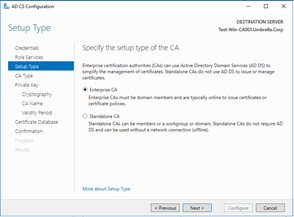 |
Choose for Enterprise CA. Click on the Next button. |
 |
Choose for Root CA. Click Next. |
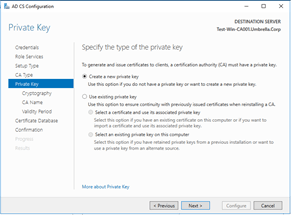 |
Choose Create a new private key. Click on the Next. |
 |
Click Next. This is the default. |
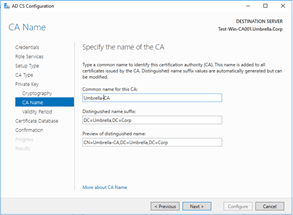 |
Give the CA a name. Click Next. |
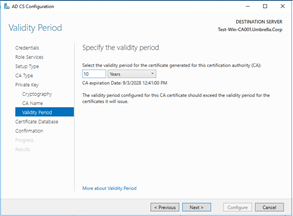 |
I have changed years into 10 instead of the default 5 years. Click Next. |
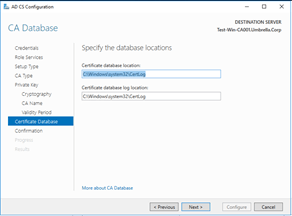 |
Next. |
 |
Configure. |
 |
The CA is configured successfully. Click Close. |
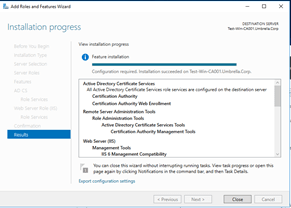 |
Click on the Close button to close the wizard. |
Check if CA is running
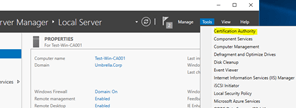 |
In Server Manager -> Tools and click on Certification Authority. |
 |
Here you see the CA. The CA has a green marker on his icon. This means that the service is running.
You got now a (basic) CA running in your environment. |
Final
Now you got a CA running. This CA can be used for enrolling certificates to domain-joined devices, like Windows 7 or 10, but this is also the basis for enrolling certificates to (mobile) devices which are managed by Microsoft Intune.
Before you can do that, you have to follow the blog series Configure Microsoft Intune – Certificates. You need more than only the CA environment to enroll the certificates to (mobile) devices that are managed with Microsoft Intune.
The next part is about the installation of the Azure Application Proxy connector.
Thanks for reading the blog. If you have any questions or comments about this, do not hesitate to contact me by email or by posting a comment here below. I am also active on social media and some community forums, like Technet forum, Yammer, and Techcommunity.
Good luck and Take care now, bye bye then…
 ALBERTNEEF.TECH
7 Comments